SDK Setup Guide
Install the SDK
- Android
- iOS
- Flutter
Octopus is available on Maven Central.
Add the dependencies to your build.gradle file:
dependencies {
    // Core SDK functionnalities
    implementation("com.octopuscommunity:octopus-sdk:x.x.x")
    // SDK UI Components (optional)
    implementation("com.octopuscommunity:octopus-sdk-ui:x.x.x")
}
See the Octopus SDK GitHub Release section to get the latest published version.
Octopus can be installed:
In an Xcode project
Open your workspace (.xcworkspace) or your project (.xcodeproj), open the File menu and open Add Package Dependencies. Then, paste the url of the Octopus Community SDK:
https://github.com/Octopus-Community/octopus-sdk-swift.git
On the next window, add both Octopus and OctopusUI to your target.
OR
In a Swift Package
Add the dependency to your package:
dependencies: [
    .package(url: "https://github.com/Octopus-Community/octopus-sdk-swift.git", from: "1.0.0"),
],
Add the SDK as a dependency to your target:
.target(
    name: "YourTarget",
    dependencies: [
        .product(name: "Octopus", package: "octopus-sdk-swift"),
        .product(name: "OctopusUI", package: "octopus-sdk-swift"),
    ]
),
Not recommended: Cocoapods
As CocoaPods is starting to be less and less used, some libraries are not available anymore. This is the case of SwiftGrpc on which the Octopus SDK has built its backend exchanges. Hence, if you use the SDK using Cocoapods, you will be using an old version of SwiftGrpc.
If you really have to use the SDK with Cocoapods, here is how to do it:
- Copy the content of our podfile example in your podfile. Pay attention to the fact that the post_install script is setting iOS 14 as minimum requirement and setting
ENABLE_USER_SCRIPT_SANDBOXINGtoNO. - Then you can run
pod install
See the Octopus SDK GitHub Release section to get the latest published version.
The Octopus Flutter SDK is available on pub.dev.
Add the dependency to your pubspec.yaml:
dependencies:
  octopus_sdk_flutter: ^1.9.0
Then run:
flutter pub get
Android setup
In your android/app/build.gradle, make sure you have:
android {
    compileSdk 35
    defaultConfig {
        minSdk 24
    }
}
In your AndroidManifest.xml, add the INTERNET permission if not already present:
<uses-permission android:name="android.permission.INTERNET"/>
In your MainActivity.kt, make sure your activity extends FlutterFragmentActivity:
import io.flutter.embedding.android.FlutterFragmentActivity

class MainActivity : FlutterFragmentActivity()
iOS setup
In your ios/Podfile, set the minimum iOS version:
platform :ios, '16.0'
Then run:
cd ios && pod install
If you encounter a gRPC conflict, add the following to your Podfile:
pod 'gRPC-Swift', :modular_headers => true
See the Octopus Flutter SDK GitHub repository to get the latest published version.
Use the SDK
As early as possible in your code, you should initialize the OctopusSDK object.
This object is expecting two things:
- the Octopus Community API key
- the connection mode
You need to know the app managed fields (also called as associated fields) that your community is configured for.
As a reminder, every associated profile fields (nickname, picture and/or bio) of your users will be used in the Octopus Community profile of this user.
The user will only be able to change it in your profile edition interface and the data will be synced to its community profile.
On the oposite, every dissociated profile fields will only be used as prefilled values during Octopus profile creation.
After that, if a user changes its nickname in your app, it won't be reflected in Octopus Community, and the user will be able to change its community nickname in the community part.
- Android
- iOS
- Flutter
At least one app managed field
If your community is having at least one associated field, you will have to create the SSO connection mode with the list of the associated fields.
Call the OctopusSDK initialization function in your Application's onCreate() block:
class YourApplication : Application() {

    override fun onCreate() {
        super.onCreate()

        OctopusSDK.initialize(
            context = this, // Application Context
            apiKey = "YOUR_API_KEY",
            connectionMode = ConnectionMode.SSO(
                // The list of associated fields
                appManagedFields = setOf(ProfileField.NICKNAME, ProfileField.PICTURE)
            )
        )
    }
}
OR
No app managed fields
When there is no app managed fields (i.e. all fields are dissociated), the API is simpler since you only have to configure it in SSO connection mode.
Call the OctopusSDK initialization function in your Application's onCreate() block:
class YourApplication : Application() {

    override fun onCreate() {
        super.onCreate()

        OctopusSDK.initialize(
            context = this, // Application Context
            apiKey = "YOUR_API_KEY",
            connectionMode = ConnectionMode.SSO()
        )
    }
}
At least one app managed field
If your community is having at least one associated field, you will have to create the SSO connection mode with:
- the list of the associated fields
- the block that will be called when OctopusSDK needs a logged in user. When this block is called, you should start to display your login process.
- the block that will be called when the user tries to modify some fields related to its profile. When this block is called, you should open the profile edition. This block has a ProfileField optional parameter. It indicates the field that the user tapped to edit if there is one.
import Octopus

/* (...) */

let octopus = try OctopusSDK(
    apiKey: "YOUR_API_KEY",
    connectionMode: .sso(
      .init(
        appManagedFields: [.nickname, .picture], // the list of associated fields
        loginRequired: {
            // Put the code here to open your login flow
        },
        modifyUser: { fieldToEdit in
            // Put the code here to open your profile edition screen
            // `fieldToEdit` is the field that has been asked to be edited by the user. Nil if the user tapped on "Edit my profile".
        }
      )
    )
)
OR
No app managed fields
When there is no app managed fields (i.e. all fields are dissociated), the API is simpler since it only requires a callback to display the login flow. When this block is called, you should start to display your login process.
import Octopus

/* (...) */

let octopus = try OctopusSDK(
    apiKey: "YOUR_API_KEY",
    connectionMode: .sso(
      .init(
        loginRequired: {
            // Put the code here to open your login flow
        }
      )
    )
)
The init function of the OctopusSDK also lets you provide a custom configuration (default config is used if you don't pass it). Here is what you can configure:
appManagedAudioSession: Bool: If false, the SDK will set the AVAudioSession category to .playback or .ambient when a video is playing to ensure audio plays in silent mode. Default is false. You can set it to true if your app is already managing audio session, to avoid that Octopus changes your config.
Here is how to use the config during SDK initialization:
import Octopus

let octopus = try OctopusSDK(
    apiKey: "YOUR_API_KEY",
    connectionMode: ..., // see above to chose the connection mode
    configuration: OctopusSDK.Configuration(appManagedAudioSession: true)
)
At least one app managed field
If your community is having at least one associated field, you will have to create the SSO connection mode with the list of the associated fields.
Initialize the SDK as early as possible in your app:
import 'package:octopus_sdk_flutter/octopus_sdk_flutter.dart';

final octopus = OctopusSDK();

await octopus.initialize(
    apiKey: 'YOUR_API_KEY',
    appManagedFields: [ProfileField.nickname, ProfileField.picture],
);
OR
No app managed fields
When there is no app managed fields (i.e. all fields are dissociated), the API is simpler since you only have to configure it in SSO connection mode.
Initialize the SDK as early as possible in your app:
import 'package:octopus_sdk_flutter/octopus_sdk_flutter.dart';

final octopus = OctopusSDK();

await octopus.initialize(
    apiKey: 'YOUR_API_KEY',
);
Link your user to the SDK
Your application is managing the connection status of the user and inform the Octopus SDK when the user is connected/disconnected
The connectUser API lets you pass the userId. This userId is the string that will identify your user for Octopus.
It needs to be unique and always refer to the same user.
You can also pass profile information (nickname, bio, picture). These fields will be used differently depending of wether the field is associated (i.e. in the app managed fields that you provided during SDK initialization) or not:
-
if the field is associated, each time the connectUser function will be called, Octopus will update the field in the user's community profile with the data you provided. Hence, the field in the community profile of the user will always be the same value as in its app profile
-
if the field is not associated, the data you provided will only be used to fill the community profile until the user edits its community profile. Once its done, their community profile remains separate from yours, meaning any updates made to your profile will not be reflected in theirs, and vice versa.
This is why you should call the connectUser function as soon as the user profile changes.
Client User Token
For security reasons, to ensure that the connected user is legitimate, the API informing the SDK of a user’s connection
includes a callback that provides a signed token for authentication. In other words, the SDK will request a token from
you when needed to authenticate the user.
Therefore, you must add a route like /generateOctopusSsoToken to your backend to generate this token.
Follow the Generate a signed JWT for SSO guide for more information
- Android
- iOS
- Flutter
Inform the SDK that your user is connected:
≥ 1.6.0OctopusSDK.connectUser(
user = ClientUser(
userId = yourUserId, // Unique identifier of your user
profile = ClientUser.Profile(
nickname = yourUserNickname, // nickname is String?
bio = yourUserBio, // bio is String?
picture = yourUserPicture // A Remote URL or a Local Uri
)
),
tokenProvider = {
// Fetch asynchronously this user token (suspended callback)
// by calling your /generateOctopusSsoToken route
}
)
Check the Community ViewModel Sample for a complete use case.
Deprecated < 1.6.0
OctopusSDK.connectUser(
    user = ClientUser(
        userId = yourUser.id,
        profile = ClientUser.Profile(
            nickname = yourUser.name,
            bio = yourUser.bio,
            picture = yourUser.picture,
            // Age Information:
            // - LegalAgeReached = Your user is more than 16 years old
            // - Underaged = Your user is less than 16 years old
            // - null = You don't know
            ageInformation = AgeInformation.LegalAgeReached
        )
    ),
    tokenProvider = {
        // Return asynchronously this user token (suspended callback)
        // by calling your /generateOctopusSsoToken route
    }
)
- Inform the SDK that your user is disconnected:
OctopusSDK.disconnectUser()
- Optional: Monitor whether the user is connected to the Octopus platform:
OctopusSDK.isUserConnected
Inform the SDK that your user is connected:
≥ 1.6.0octopus.connectUser(
ClientUser(
userId: yourUser.id,
profile: ClientUser.Profile(
nickname: yourUser.name, // nickname is String?
bio: yourUser.bio, // bio is String?
picture: yourUser.picture // picture is Data?, this Data will be transformed into an UIImage using `UIImage(data:)` so it must be compatible.
)
),
tokenProvider: {
// Fetch asynchronously this user token
// by calling your /generateOctopusSsoToken route
}
)
Deprecated < 1.6.0
octopus.connectUser(
    ClientUser(
        userId: yourUser.id,
        profile: ClientUser.Profile(
            nickname: yourUser.name,
            bio: yourUser.bio,
            picture: yourUser.picture,
            ageInformation: .legalAgeReached // if your user is more than 16 years old. Pass .underaged if they are less than 16. Pass nil if you don't know
        )
    ),
    tokenProvider: {
        // Fetch asynchronously this user token
        // by calling your /generateOctopusSsoToken route
    }
)
Inform the SDK that your user is disconnected:
octopus.disconnectUser()
Inform the SDK that your user is connected:
await octopus.connectUser(
    userId: yourUserId, // Unique identifier of your user
    token: yourUserToken, // The signed JWT token
    nickname: yourUserNickname, // String? - optional
    bio: yourUserBio, // String? - optional
    picture: yourUserPicture, // String? - A Remote URL
);
Alternatively, you can use a token provider that will be called when the SDK needs to authenticate the user:
await octopus.connectUserWithTokenProvider(
    userId: yourUserId,
    nickname: yourUserNickname,
    bio: yourUserBio,
    picture: yourUserPicture,
    tokenProvider: () async {
        // Fetch asynchronously this user token
        // by calling your /generateOctopusSsoToken route
        return token;
    },
);
Inform the SDK that your user is disconnected:
await octopus.disconnectUser();
Display the Octopus Community UI
Now that you have the SDK properly configured, you can add a button in your app that opens the Octopus Community UI.
- Android
- iOS
- Flutter
- Add the
OctopusHomeContentcomposable to your community screen.
OctopusTheme(...) { // Customize the Octopus Theme here
    OctopusHomeContent(
        modifier = Modifier.fillMaxSize(),
        navController = navController, // Your main NavHostController
        onNavigateToLogin = {
            // This block will be called when OctopusSDK needs a logged-in user.
            // You should launch your login process here.
            // Example: navController.navigate(LoginRoute)
            // Once the user is logged in, you need to call OctopusSDK.connectUser(...) to link
            // them with Octopus
        },
        // Optional: If your community has at least one associated field:
        onNavigateToProfileEdit = { profileField ->
            // This block will be called when the user tries to modify some fields related
            // to their profile.
            // When this block is called, you should open your profile edition screen.
            // Example: navController.navigate(ProfileScreen(focusNickname = fieldToEdit == ProfileField.NICKNAME))
            // Once the user has edited their profile, you should call OctopusSDK.connectUser(...) to update the Octopus profile.
        }
    )
}
Check the Community Screen Sample for basic usage.
- Declare other Octopus sub-screens in your main
NavHost:
NavHost(...) { // Your main NavHost
    octopusComposables(
        navController = navController, // Your main NavHostController
        onNavigateToLogin = { ... },
        onNavigateToProfileEdit = { ... }
    ) { backStackEntry, content ->
        // Customize the Octopus Theme possibly based on a specific Octopus Screen here
        OctopusTheme(...) {
            content()
        }
    }
}
This function registers multiple composable() destinations in your NavGraphBuilder for adding the Octopus SDK navigation flow to your app.
Depending on your use case integration mode check the various samples:
First, import Octopus UI:
import OctopusUI
Octopus handles its own navigation, so you must not embed it in a navigation stack.
@State private var openOctopus = false

var body: some View {
    Button("Open Octopus Community") {
        openOctopus = true
    }.fullScreenCover(isPresented: $openOctopus) {
        OctopusHomeScreen(octopus: octopus)
    }
}
If you're using a UITabBarController to display the Octopus UI inside a UIHostingController, you might encounter a safe area bug. This is a known bug not related to the Octopus SDK UI. To fix it, you might want to add the UITabBarController children in the code instead of in the Storyboard. Otherwise, you can add a negative padding equal to tabBarController.tabBar.frame.size.height to the OctopusUI.
You can display the Octopus Community UI as an embedded widget.
Embedded widget:
OctopusHomeScreen(
    onNavigateToLogin: () {
        // This callback will be called when OctopusSDK needs a logged-in user.
        // You should launch your login process here.
    },
    onModifyUser: (String? field) {
        // This callback will be called when the user tries to modify some fields
        // related to their profile.
        // `field` indicates the field that the user tapped to edit, if any.
    },
)
Modify bottom safe area
According to your app, you might want to add a bottom padding to the Octopus UI content.
- Android
- iOS
- Flutter
This can be done by using the contentPadding parameter of the OctopusHomeContent composable.
OctopusHomeContent(
    modifier = Modifier.fillMaxSize(),
    contentPadding = PaddingValues(bottom = 10.dp) // This will add a 10dp padding at the bottom of the Octopus UI
    // ...
)
To see a full example of how you can achieve that, you can check the Floating Bottom Navigation Bar Sample.
This can be done by using the bottomSafeAreaInset parameter of the OctopusHomeScreen.
OctopusHomeScreen(
    octopus: octopus,
    bottomSafeAreaInset: 10 // this will add a 10px safe area at the bottom of the Octopus UI
)
To see a full example of how you can achieve that, you can follow how it is done in the Samples, in the Embedded Tab.
Bottom safe area modification is not yet available on Flutter.
Modify the theme
The Octopus SDK lets you modify its theme so its UI looks more like yours.
You can modify:
-
the colors:
Please pass colors without any transparency.
- the primary colors (a main color, a low contrast and a high contrast variations of the main color). If you do not pass a custom value for it, black/white default values will be used.
- the color of the elements (mostly texts) displayed over the primary color. If you do not pass a custom value for it, white/black default value will be used.
-
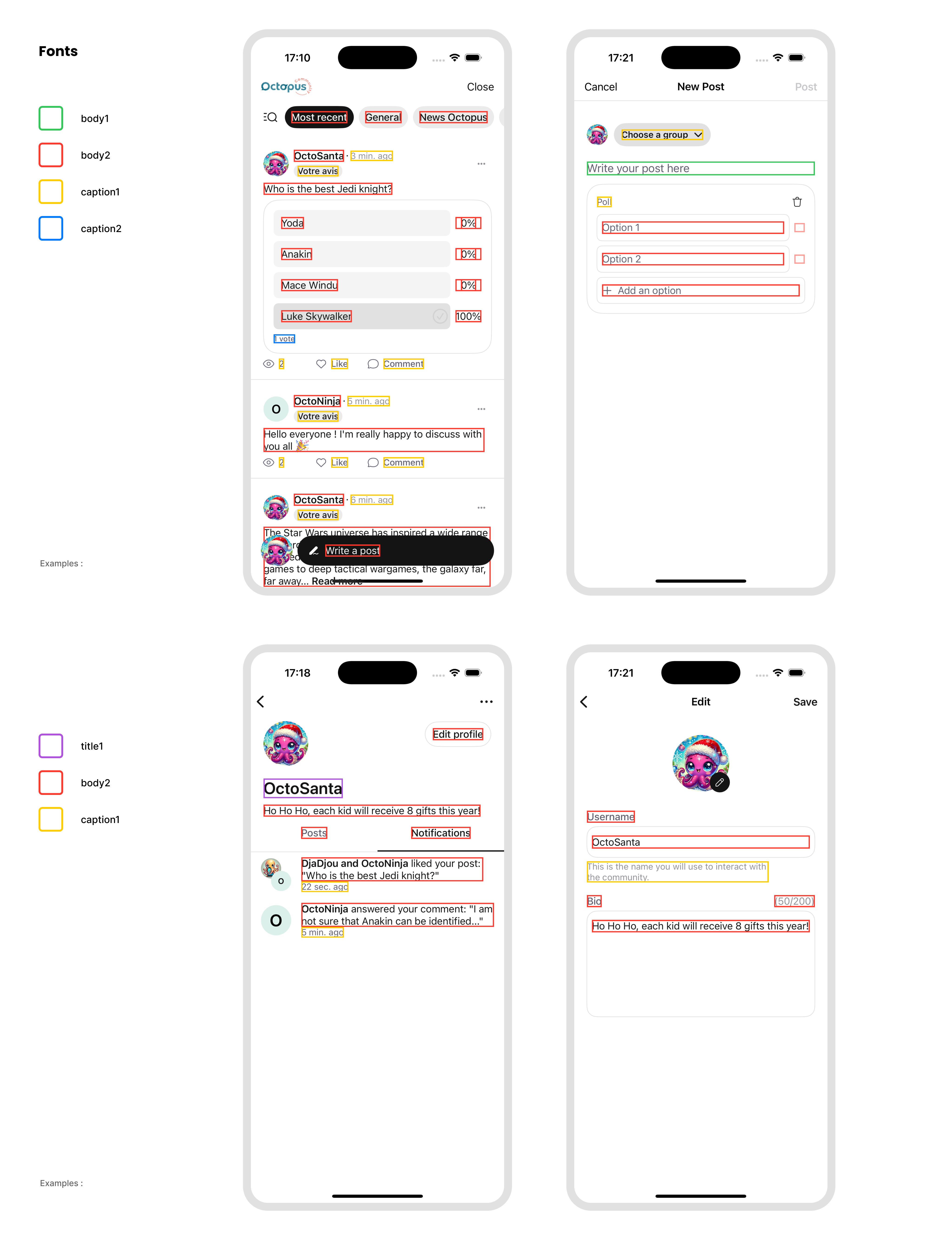
the fonts. You can customize the styles (title1, body2, caption1...) used in the sdk. If you do not pass a custom value for it, default value will be used.
-
the logo. This is an image displayed on the Octopus home page and profile creation view. If you do not pass a custom image for it, Octopus logo value will be used.
-
(⚠ Android only) the TopAppBar. You can customize the appearance, title, navigation icons, actions, and colors of the TopAppBar. If you do not pass a custom configuration for it, default TopAppBar will be used.
- Android
- iOS
- Flutter
By default, Octopus will rely on your application's MaterialTheme.colorScheme, but you can customize the UI more precisely by surrounding composables with the OctopusTheme:
To do that, you can override the theme by passing it as an environment object:
octopusComposables(
    navController = navController
) { backStackEntry, content ->
    OctopusTheme(
        colorScheme = if (isSystemInDarkTheme()) {
            octopusDarkColorScheme(
                primary = yourDarkPrimaryColor, // Default: MaterialTheme.colorScheme.primary
                primaryLow = lowContrastVersionOfYourPrimaryColor, // Default: MaterialTheme.colorScheme.primaryContainer
                primaryHigh = highContrastVersionOfYourPrimaryColor, // Default: MaterialTheme.colorScheme.inversePrimary
                onPrimary = yourDarkOnPrimaryColor, // Default: MaterialTheme.colorScheme.onPrimary
                background = yourDarkBackgroundColor // Default: MaterialTheme.colorScheme.background
                // See the complete list in the sources documentation
            )
        } else {
            octopusLightColorScheme(
                primary = yourLightPrimaryColor, // Default: MaterialTheme.colorScheme.primary
                primaryLow = lowContrastVersionOfYourPrimaryColor, // Default: MaterialTheme.colorScheme.primaryContainer
                primaryHigh = highContrastVersionOfYourPrimaryColor, // Default: MaterialTheme.colorScheme.inversePrimary
                onPrimary = yourLightOnPrimaryColor, // Default: MaterialTheme.colorScheme.onPrimary
                background = yourLightBackgroundColor // Default: MaterialTheme.colorScheme.background
                // See the complete list in the sources documentation
            )
        },
        typography = OctopusTypographyDefaults.typography(
            title1 = yourCustomTitle1Style, // Default: TextStyle(fontSize = 26.sp)
            title2 = yourCustomTitle2Style  // Default: TextStyle(fontSize = 22.sp)
            // See the complete list in the sources documentation
        ),
        images = OctopusImagesDefaults.images(
            logo = painterResource(R.drawable.your_custom_logo) // Default: null
        )
    )
        // ... Check the complete parameters list in the sources documentation
    ) {
        content()
    }
}
Use the OctopusThemeGenerator to configure your Community theme with a live preview of the various Octopus screens.
All parameters of the theme have default values. Only override the ones that you want to customize. In the following example, you are creating an OctopusTheme with default colors, default fonts except for the title1, and a custom logo:
OctopusTheme(
    typography = OctopusTypographyDefaults.typography(
        title1 = TextStyle(fontFamily = FontFamily.SansSerif, fontSize = 24.sp)
    ),
    images = OctopusImagesDefaults.images(
        logo = painterResource(R.drawable.your_custom_logo)
    )
) {
    OctopusHomeContent(...)
}
To do that, you can override the theme by passing it as an environment object:
OctopusHomeScreen(octopus: octopus)
    .environment(
        \.octopusTheme,
        OctopusTheme(
            colors: .init(
                primarySet: OctopusTheme.Colors.ColorSet(
                    main: yourPrimaryColor,
                    lowContrast: lowContrastVersionOfYourPrimaryColor,
                    highContrast: highContrastVersionOfYourPrimaryColor
                ),
                onPrimary: contentOverPrimaryColor
            ),
            fonts: .init(
                title1: Font.custom("Courier New", size: 26),
                title2: Font.custom("Courier New", size: 20),
                body1: Font.custom("Courier New", size: 17),
                body2: Font.custom("Courier New", size: 14),
                caption1: Font.custom("Courier New", size: 12),
                caption2: Font.custom("Courier New", size: 10),
                navBarItem: Font.custom("Courier New", size: 17)
            ),
            assets: .init(logo: yourLogoAsUIImage)
        )
    )
All parameters of the theme have default values. Only override the ones that you want to customize. In the following example, you are creating an OctopusTheme with default colors, default fonts except for the title1, and a custom logo:
let octopusTheme = OctopusTheme(
    fonts: .init(
        title1: Font.custom("Courier New", size: 26)
    ),
    assets: .init(logo: yourLogoAsUIImage)
)
If your app supports only light or dark mode, add UIUserInterfaceStyle to your Info.plist with the value Light or Dark to force the SDK to use the mode you specified.
You can customize the Octopus theme by passing an OctopusTheme to the OctopusHomeScreen widget or showOctopusHomeScreen():
OctopusHomeScreen(
    theme: OctopusTheme(
        colors: OctopusColors(
            primary: Color(0xFF6200EE),
            primaryLow: Color(0xFFBB86FC),
            primaryHigh: Color(0xFF3700B3),
            onPrimary: Colors.white,
        ),
        fontSizes: OctopusFontSizes(
            title1: 26,
            title2: 22,
            body1: 17,
            body2: 14,
            caption1: 12,
            caption2: 10,
        ),
        logo: yourBase64EncodedLogo, // String? - base64 encoded image
        themeMode: ThemeMode.system, // ThemeMode.light, ThemeMode.dark, or ThemeMode.system
    ),
)
All parameters of the theme have default values. Only override the ones that you want to customize. In the following example, you are creating an OctopusTheme with default colors, default font sizes except for the title1, and a custom logo:
OctopusTheme(
    fontSizes: OctopusFontSizes(
        title1: 24,
    ),
    logo: yourBase64EncodedLogo,
)
Use the themeMode parameter to control light/dark mode. Set it to ThemeMode.light or ThemeMode.dark to force a specific mode, or ThemeMode.system (default) to follow the system setting.
Here is a summary of the impacts of the theme you choose:
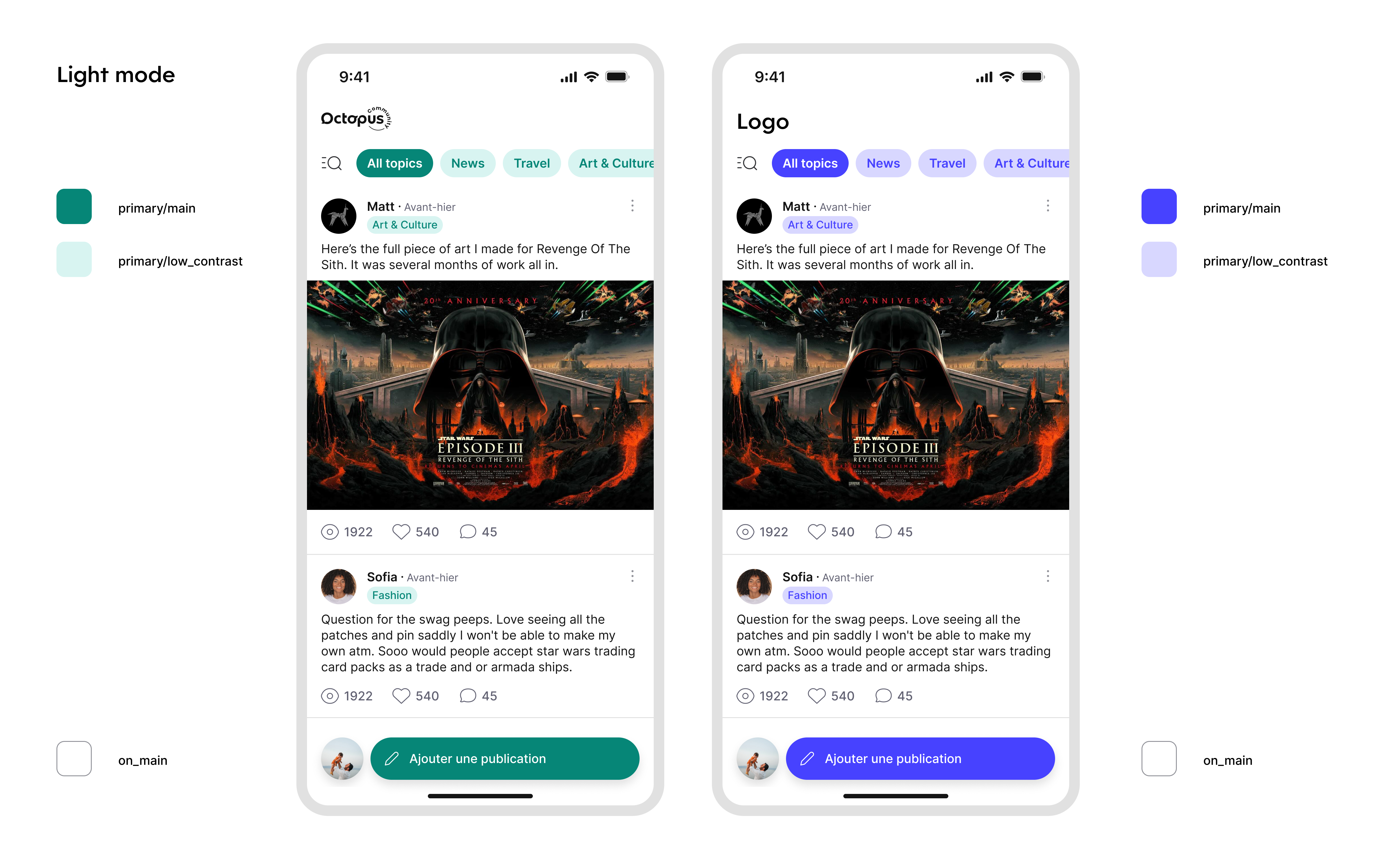
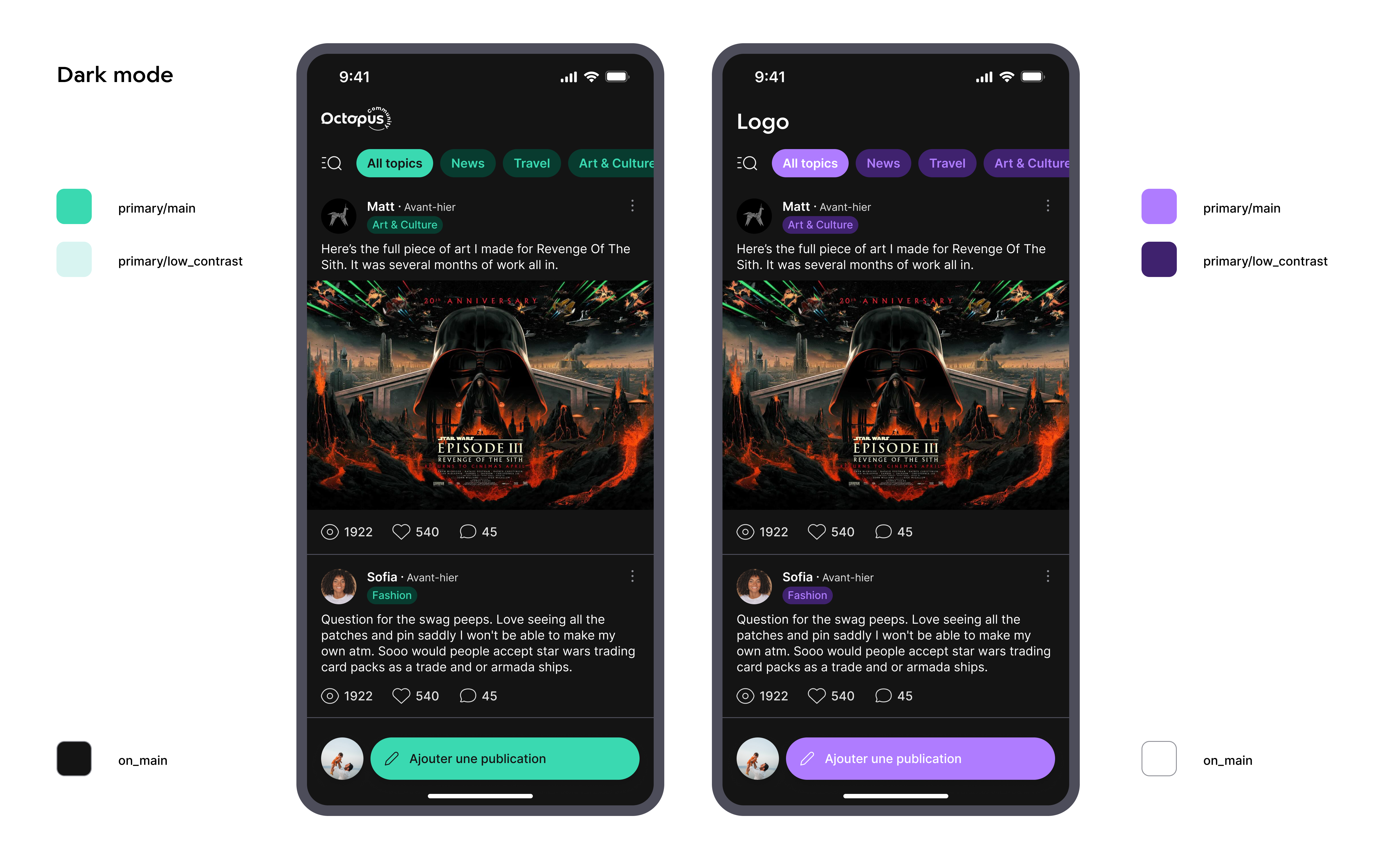
Here is a summary of the text styles used in the main screens of the SDK:
Customize the TopAppBar
- Android
- iOS
- Flutter
You can customize the appearance of the TopAppBar in the Octopus SDK screens by providing your own OctopusTopAppBar configuration when setting up the theme. We highly encourage you to choose a short text title (less than 18 characters).
OctopusTheme(
    ...
    topAppBar = OctopusTopAppBarDefaults.topAppBar(
        title = { text ->
            OctopusTopAppBarTitle(
                text = "Your TopAppBar Title", // Default: text
                logo = painterResource(R.drawable.your_logo), // Default: OctopusTheme.images.logo
                textStyle = yourTopAppBarTextStyle // Default: LocalTextStyle.current
            )
        },
        colors = OctopusTopAppBarDefaults.colors(
            containerColor = yourTopAppBarBackgroundColor, // Default: OctopusTheme.colorScheme.background
            contentColor = yourTopAppBarContentColor // Default: OctopusTheme.colorScheme.gray900
        ),
        navigationIcon = { type, onClick ->
            IconButton(onClick = onClick) {
                Icon(
                    imageVector = when (type) {
                        NavigationIconType.Back -> YourBackIcon
                        NavigationIconType.Close -> YourCloseIcon
                    },
                    contentDescription = when (type) {
                        NavigationIconType.Back -> "Navigate back"
                        NavigationIconType.Close -> "Close"
                    }
                )
            }
        },
        // ... Check the complete parameters list in the sources documentation
    )
)
The OctopusTopAppBar will automatically use your theme's color scheme if no specific colors are provided, ensuring consistency across your app.
You can customize the look of the navigation bar in the main screen (the posts list).
There are two parameters when displaying the OctopusHomeScreen that affect this navigation bar:
navBarLeadingItem: an enum value that lets you choose what will be displayed in the top left corner.
Its value is either:.logoto display the logo (see Modify the theme).text(TextTitle)to display a text. In the case of a text, we highly encourage you to choose a short text (less than 18 characters). Default value is.logo.
navBarPrimaryColor: iftrue, the background color of the navigation bar will be set to the primary color (see Modify the theme). Otherwise, it will be the default color. Default value isfalse.
Here is how to use these two parameters:
OctopusHomeScreen(
    octopus: octopus,
    navBarLeadingItem: .text(.init(text: "App Name")),
    navBarPrimaryColor: true
)
To see a full example of how you can achieve that, you can follow how it is done in the Samples, in the Scenario "Custom theme".
You can customize the navigation bar of the Octopus UI by passing parameters to the OctopusHomeScreen widget:
OctopusHomeScreen(
    navBarTitle: "My Community", // Short text title (less than 18 characters)
    navBarPrimaryColor: true, // Use primary color as background
    showBackButton: true, // Show the back button
    onBack: () { ... },
)
Advanced Screen-Based Theming (Android only)
- Android
- iOS
- Flutter
For more complex theming scenarios, you can customize any aspect of the Octopus theme (colors, typography, images, TopAppBar) based on the current screen:
octopusComposables(
    navController = navController
) { backStackEntry, content ->
    OctopusTheme(
        colorScheme = when {
            // Post Details with branded theme
            backStackEntry.destination.hasRoute<OctopusDestination.PostDetails>() -> {
                octopusColorScheme().copy(
                    background = if (isSystemInDarkTheme()) Color.Black else Color.White
                )
            }
            else -> octopusColorScheme()
        },
        topAppBar = when {
            // Home screen with custom TopAppBar theme
            backStackEntry.destination.hasRoute<OctopusDestination.Home>() -> {
                OctopusTopAppBarDefaults.topAppBar(
                    title = { text ->
                        OctopusTopAppBarTitle(text = "My Community")
                    }
                )
            }
            else -> OctopusTopAppBarDefaults.topAppBar()
        }
    ) {
        content()
    }
}
Screen-based theming is not available on iOS.
Screen-based theming is not available on Flutter.
Push Notifications ≥ 1.4.0
To increase user engagement, you can provide informations to the Octopus SDK so your users can receive push notifications when other users interact with them inside the community.
Octopus SDK is not asking for push notification permissions, we let you handle that part where it makes more sense in your app.
- Android
- iOS
- Flutter
If your app does not support Push Notifications yet, you can follow the official Firebase documentation.
Our servers need your service account's private key file to be authorized to send notifications to your app on your behalf.
If you don't have this JSON file yet, follow this tutorial
- In the Firebase console, open Settings > Service Accounts
- Click Generate New Private Key, then confirm by clicking Generate Key.
- Securely store the JSON file containing the key.
More information can be found in the official Firebase documentation
Please send the json file using the online form sent by the Octopus team.
This JSON file is different from the one you are using to configure Firebase in your app (google-services.json)
Once your project is correctly set up for push notifications, you should forward the Firebase Cloud Messaging Token (FCM Token) to the Octopus SDK:
class MessagingService : FirebaseMessagingService() {
    override fun onNewToken(token: String) {
        super.onNewToken(token)

        // Register the new token with Octopus
        OctopusSDK.registerNotificationsToken(token)
    }
}
You are in charge of requesting the Notification permission and referencing your messaging service:
<uses-permission android:name="android.permission.POST_NOTIFICATIONS" />
if (checkSelfPermission(POST_NOTIFICATIONS) != PackageManager.PERMISSION_GRANTED) {
    // Request launcher for notification permission
    registerForActivityResult(
        contract = ActivityResultContracts.RequestPermission(),
        callback = {
            FirebaseMessaging.getInstance().token.addOnCompleteListener { task ->
                if (task.isSuccessful) {
                    OctopusSDK.registerNotificationsToken(task.result)
                }
            }
        }
    ).launch(POST_NOTIFICATIONS)
}
<service
    android:name=".notifications.MessagingService"
    android:exported="false">
    <intent-filter>
        <action android:name="com.google.firebase.MESSAGING_EVENT" />
    </intent-filter>
</service>
When you receive a notification message, first check if it is an Octopus notification by calling:
override fun onMessageReceived(remoteMessage: RemoteMessage) {
    super.onMessageReceived(remoteMessage)

    val isOctopusNotification = remoteMessage.data.isOctopusNotification
    if (isOctopusNotification) {
        // ... Handle the Octopus notification here (see below)
    }
}
If it's the case, display the Octopus notification using the Notification Manager:
val octopusNotification = OctopusSDK.getOctopusNotification(data = remoteMessage.data)
if (octopusNotification != null) {
    notificationManager.notify(
        octopusNotification.id,
        Notification.Builder(this, CHANNEL_ID)
            .setSmallIcon(R.drawable.ic_stat_notification)
            .setColor(getColor(R.color.accent))
            .setAutoCancel(true)
            // Extension function to extract the title, text and deep link from the OctopusNotification
            .setOctopusContent(
                context = this,
                activityClass = MainActivity::class,
                octopusNotification = octopusNotification
            ).build()
    )
}
Then you can display the notification's targeted Octopus UI from the octopusNotification.deepLink:
intent.data?.let { uri -> navController.navigate(deepLink = uri)}
- The
activityClassmust be the one containing the compose content with theoctopusNavigation()subgraph. - The
setOctopusContentfunction is based on a deep link mechanism that will automatically launch the activity and navigate to the corresponding screen within the Octopus navigation graph. - You can also handle the content manually by using the
OctopusNotification'stitle,body, andlinkPathfields and configuring your ownPendingIntent.
If your app does not support Push Notifications yet, you can follow the official Apple documentation.
Our servers need to have a key in the .p8 format in order to send push notifications to your app on your behalf.
If you don't have this key yet, follow this tutorial
- Go to the Apple Dev Website and create a new key.
- Name it and check
Apple Push Notifications service (APNs). - Click on configure for this line and select
Sandbox & Productionin theEnvironmentmenu if you intend to have the same key for sandbox and production builds. - Download the key and be sure to store it in a secure and retrievable place.
Once you have that file, you should send it using the secure form provided by the Octopus Team, along with:
- the key ID: can be found in the list of keys on the Apple Dev Website
- your Bundle ID: can be found in your Xcode project
- your Team ID: can be found here in the
Membership detailscard
Once your project is correctly set up for push notifications, you should forward the notification device token to the Octopus SDK:
func application(_ application: UIApplication, didRegisterForRemoteNotificationsWithDeviceToken deviceToken: Data) {
    let token = deviceToken.map { String(format: "%02.2hhx", $0) }.joined()
    octopus.set(notificationDeviceToken: token)
}
You are in charge of registering for remote notifications by calling:
UIApplication.shared.registerForRemoteNotifications()
and for getting the user's authorization by calling:
notifCenter.requestAuthorization(options: [.alert, .badge, .sound])
When you receive a notification response (i.e., when the user tapped a notification), first check if it is an Octopus notification by calling:
OctopusSDK.isAnOctopusNotification(notification: notificationResponse.notification)
If it is one, display the Octopus UI and pass it the notification response as a Binding:
OctopusHomeScreen(octopus: octopus, notificationResponse: $octopusNotification)
Push notifications are not yet available on Flutter. You can handle push notifications at the native level.
Not seen notifications ≥ 1.3.0
To increase user engagement, let your users know that they have new notifications from the Octopus notification center. Displaying a badge with the number of new notifications in your app can be a great way to suggest your users to look at what's new in the community again.
- Android
- iOS
- Flutter
To do that, the Octopus SDK exposes a val notSeenNotificationsCount: Flow<Int>
that you can collect:
OctopusSDK.notSeenNotificationsCount.collect {}
If you want to update this value with the latest count, simply call:
OctopusSDK.updateNotSeenNotificationsCount()
To see a full example of how you can achieve that, you can follow how it is done in the Samples, in the Octopus Sample app.
To do that, the Octopus SDK exposes a @Published var notSeenNotificationsCount: Int.
If you want to update this value with the latest count, simply call :
try await octopus.updateNotSeenNotificationsCount()
To see a full example of how you can achieve that, you can follow how it is done in the Samples, in the Scenario "Notification Badge".
To do that, the Octopus SDK exposes a Stream<int> that emits the unseen notifications count whenever it changes:
OctopusSDK.notSeenNotificationsCount.listen((count) {
    // Update your badge with the new count
});
If you want to update this value with the latest count, simply call:
await octopus.updateNotSeenNotificationsCount();
Analytics
Octopus Community provides analytics to help you better understand your users' behavior within the community. To improve the quality of these analytics, we offer features that allow you to provide additional information about your users.
Custom events ≥ 1.4.0
You can tell the SDK to register a custom event. This event can be merged into the reports we provide.
- Android
- iOS
- Flutter
OctopusSDK.track(
    event = TrackerEvent.Custom(
        name = "Purchase",
        properties = mapOf(
            "price" to TrackerEvent.Custom.Property(
                value = String.format(Locale.US, "%.2f", 1.99)
            ),
            "currency" to TrackerEvent.Custom.Property(value = "EUR"),
            "product_id" to TrackerEvent.Custom.Property(value = "product1")
        )
    )
)
try await viewModel.octopus?.track(customEvent: CustomEvent(
    name: "Purchase",
    properties: [
        "price": .init(value: "\(String(format: "%.2f", 1.99))"),
        "currency": .init(value: "EUR"),
        "product_id": .init(value: "product1"),
    ]))
To see a full example of how you can achieve that, you can follow how it is done in the Samples, in the Scenario "Custom events".
await octopus.trackCustomEvent('Purchase', {
    'price': '1.99',
    'currency': 'EUR',
    'product_id': 'product1',
});
Community Visibility ≥ 1.3.0
If you enable access to the community for only a subset of your users and want the analytics we provide to take this into account, you can inform the SDK accordingly.
This information is reset at each SDK launch so be sure to call the function everytime and as soon as possible after SDK init.
This section is only usefull when the host app (i.e. your app) manages its own A/B testing logic. Call this if your app is running its own A/B test and you want Octopus to log whether a given user is in the "community-enabled" or "control" group. This is useful for reporting and engagement analytics, but does not change the SDK’s runtime behavior.
- Android
- iOS
- Flutter
OctopusSDK.trackAccessToCommunity(hasAccess = canAccessCommunity)
Deprecated < 1.6.0
OctopusSDK.setHasAccessToCommunity(canAccessCommunity)
octopus.track(hasAccessToCommunity: canAccessCommunity)
Deprecated < 1.6.0
octopus.set(hasAccessToCommunity: canAccessCommunity)
To see a full example of how you can achieve that, you can follow how it is done in the Samples, in the Scenario "Track A/B Tests".
await octopus.trackCommunityAccess(canAccessCommunity);
Octopus Events ≥ 1.9.0
As what the user does inside the Octopus UI is pretty opaque for you, we provide a way to register to be informed about events done by the user occuring inside Octopus.
If you have your own tracking service, you can use this publisher to listen to events that occured inside the Octopus UI part and feed your tracking service with them.
Here is the list of all events and their params that are emitted from the Octopus SDK
Content
postCreated
Sent when a post has been created by the current user.
Params:
postId: String— The id of the post.content: PostContent— Content of the post.PostContentis a set oftext,imageandpollindicating the content of the post.topicId: String— The id of the topic to which the post has been linked.textLength: Int— The length of the text of this post.
commentCreated
Sent when a comment has been created by the current user.
Params:
commentId: String— The id of the comment.postId: String— The id of the post in which the comment has been posted.textLength: Int— The length of the text of this comment.
replyCreated
Sent when a reply has been created by the current user.
Params:
replyId: String— The id of the reply.commentId: String— The id of the comment in which this reply has been posted.textLength: Int— The length of the text of this reply.
contentDeleted
Sent when a post, a comment or a reply has been deleted by the current user.
Params:
contentId: String— The id of the content that has been deleted.kind: ContentKind— The kind of content. Can bepost,commentorreply.
reactionModified
Sent when a reaction is modified (added, deleted or changed) on a content by the current user.
Params:
previousReaction: ReactionKind?— The previous reaction. Can be null.newReaction: ReactionKind?— The new reaction. If null, it means that the reaction has been deleted.ReactionKindis eitherheart,joy,mouthOpen,clap,cryorrage.contentId: String— The id of the content.contentKind: ContentKind— The kind of content. Can bepost,commentorreply.
pollVoted
Sent when the current user votes for a poll.
Params:
contentId: String— The id of the content (i.e. the post).optionId: String— The id of the option voted by the user.
contentReported
Sent when a content has been reported by the current user.
Params:
contentId: String— The id of the content.reasons: [ReportReason]— The reasons of reporting this content.
Gamification
gamificationPointsGained
Sent when gamification points are gained. Please note that only the points triggered by an in-app action are reported live.
Params:
pointsGained: Int— The points that have been added.action: GamificationPointsGainedAction— The action that led to gaining points.
gamificationPointsRemoved
Sent when gamification points are removed. Please note that only the points triggered by an in-app action are reported live. For example, if a post of this user gets moderated, you won't receive the information about points removed.
Params:
pointsRemoved: Int— The points that have been removed.action: GamificationPointsRemovedAction— The action that led to losing points.
Navigation & UI
screenDisplayed
Sent when the user navigates to a given screen.
Params:
-
screen: Screen— The screen that has been displayed.Screencan be:-
postsFeed— The posts feed (i.e. list of posts)Params:
feedId: String— The id of the feed that is displayed.relatedTopicId: String?— The id to the topic that is related to this feed. Null if the feed is not representing a topic or is multi-topic (for example, the feed "For You").
-
postDetail— The post detail screen with the list of commentsParams:
postId: String— The id of the post that is displayed.
-
commentDetail— The comment detail screen with the list of repliesParams:
commentId: String— The id of the comment that is displayed.
-
createPost— The create post screen -
profile— The user profile screen -
otherUserProfile— The profile screen of another Octopus userParams:
profileId: String— The id of the profile that is displayed.
-
editProfile— The edit profile screen -
reportContent— The report content screen -
reportProfile— The report profile screen -
validateNickname— The validate nickname screen (displayed after a user with a non-modified nickname has created a post) -
settingsList— The settings screen -
settingsAccount— The account settings screen. Only visible if the SDK is configured in Octopus authentication (not SSO) -
settingsAbout— The about settings screen -
reportExplanation— The report explanation screen -
deleteAccount— The delete account screen. Only visible if the SDK is configured in Octopus authentication (not SSO)
-
notificationClicked
Sent when the user clicks on an internal notification (from the Octopus Notification Center).
Params:
notificationId: String— The id of the notification.contentId: String?— The target content id. Can be null if the notification does not target a content.
postClicked
Sent when the user clicks on a post.
Params:
postId: String— The id of the post.source: PostClickedSource— The source of the click. Can befeed(if the post was displayed in the posts feed) orprofile(if the post was displayed in a user profile posts list).
translationButtonClicked
Sent when the user clicks on a translation button.
Params:
contentId: String— The id of the content.viewTranslated: Bool— Whether the user wants to display the translated or the original content.contentKind: ContentKind— The kind of content. Can bepost,commentorreply.
commentButtonClicked
Sent when the user clicks the comment button of a post.
Params:
postId: String— The id of the post.
replyButtonClicked
Sent when the user clicks the reply button of a comment.
Params:
commentId: String— The id of the comment.
seeRepliesButtonClicked
Sent when the user clicks on the replies button of a comment.
Params:
commentId: String— The id of the comment.
Profile
profileModified
Sent when the profile is modified by the user.
Params:
-
nickname: ProfileFieldUpdate<NicknameUpdateContext>— The nickname update information. Either unchanged or changed. -
bio: ProfileFieldUpdate<BioUpdateContext>— The bio update information. Either unchanged or changed.BioUpdateContext params:
bioLength: Int— The length of the bio.
-
picture: ProfileFieldUpdate<PictureUpdateContext>— The picture update information. Either unchanged or changed.PictureUpdateContext params:
hasPicture: Int— Whether the user has added a picture or deleted the existing one.
Session
sessionStarted
Sent when an Octopus UI session is started.
Params:
sessionId: String— The id of the session.
sessionStopped
Sent when an Octopus UI session is stopped (call either when the Octopus UI is closed or when the app is put in background).
Params:
sessionId: String— The id of the session.
Types
ContentKind
Can be post, comment or reply.
ReactionKind
Can be heart, joy, mouthOpen, clap, cry or rage.
PostContent
A set of text, image and poll indicating the content of the post.
Here is how to listen to these events:
- Android
- iOS
- Flutter
// Listen to Octopus Events and convert into events for your analytics tool,
// for example here with Firebase Analytics
OctopusSDK.events.collect { event ->
    when(event) {
        is PostCreated -> {
            FirebaseAnalytics.getInstance().logEvent(
                name = "post_created",
                params = Bundle().apply {
                    putString("topic", event.topicId)
                    putInt("text_length", event.textLength)
                    putBoolean("has_poll", event.content.contains(POLL)
                    putBoolean("has_image", event.content.contains(IMAGE)
                }
            )
        }
        else -> { //... }
    }
}
// Listen to Octopus Events and convert into events for your analytics tool,
// for example here with Firebase Analytics
octopus.eventPublisher.sink { event in
    switch event {
    case let .postCreated(context):
        Analytics.logEvent("post_created", parameters: [
            "topic": context.topicId,
            "text_length": context.textLength,
            "has_poll": context.content.contains(.poll),
            "has_image": context.content.contains(.image)
        ])
    case ...
    }
}
To see a full example of how you can achieve that, you can follow how it is done in the Samples, in the Scenario "Events".
// Listen to Octopus Events and convert into events for your analytics tool
OctopusSDK.events.listen((event) {
    switch (event) {
        case PostCreatedEvent():
            // Log to your analytics tool
            analytics.logEvent(
                name: 'post_created',
                parameters: {
                    'topic': event.topicId,
                    'text_length': event.textLength,
                },
            );
        // ... handle other events
        default:
            break;
    }
});
Bridges ≥ 1.5.0
Octopus provides a way of linking a specific object in your app (e.g. a page, a product, any kind of content) to a dynamic post in the community, created automatically. We call this a bridge. To create a bridge, your content (an article, a product, etc.) must have a unique identifier. This ID will be used to link your content to the post. It will also allow users in the Octopus Community to directly view your content.
The bridge process involves four main steps:
Step 1: Prepare the post data Use the SDK to get (or create) the ID of the post related to your content. First get from the SDK the id of the post to display. The SDK will create the post if it is not already created. To do that, call the dedicated API and pass the required data:
- Content id (called clientObjectId) that the post will be about
- Text of the post. It must be between 10 and 5000 (3000 before the 1.8.0) characters.
- Catchphrase (optional). It will be displayed below the title, in bold. You can use something like "What do you think about this?". It must be less than 84 characters and we recommand between 6 and 38 characters.
- Image for the post (optional). You can either pass a remote image using an URL or a local image.
The image must respect these requirements:
- File size must be less than 50Mb
- File format must be jpg or png
- Image sides must be between 50px and 4000px, with a max ratio of 32:9 (bigger side / smaller side)
- If you pass a remote image, the resource should be public
- Text of the button that will invite your users to display your content (optionnal). You can use something like "Buy it" if your content is a purchasable product, or "Read the article" if it is a press article. When the button containing this text will be tapped, the SDK will ask you to display your content. If no text is provided, the button won't be displayed. It must be less than 28 characters, we recommand between 4 and 28 characters.
- Topic id (optional). This is the id of the topic that you want the post to be labelled with. If not provided, the topic will be automatically set according to your community settings. You can retrieve the list of the available topics with the dedicated API (see below).
- Android
- iOS
- Flutter
// Get cached topics
OctopusSDK.topics.collect { topics ->
    // List of available topics
}

// Fetch latest topics from server
OctopusSDK.fetchTopics()
// Get cached topics
octopus.$topics
    .sink { topics in
        // List of available topics
    }

// Fetch latest topics from server
octopus.fetchTopics()
Bridges are not yet available on Flutter.
- Signature (optional). For security reasons, to ensure that the request is coming from you, you can provide a signature. The need for the signature is based on your community settings, we highly encourage you to enable this security check by contacting us. Therefore, you must add a route like
/generateBridgeSignatureto your backend to generate this token based on the same algorithm as generating the token for users (subis not required for this process).
- Android
- iOS
- Flutter
val clientPost = ClientPost(
    objectId = "recipe-129302938", // A unique identifier for your content
    text = "The perfect Canelés", // Between 10 and 5000 chars
    attachment = Image.Remote(url = imageUrl), // You can also pass Image.Local(uri)
    topicId = foodRecipeId, // The id of the Octopus topic. Null if default.
    catchPhrase = "Tried the canelés? Tell us how good they were!", // Less than 84 characters
    viewObjectButtonText = "Read the recipe", // Less than 28 characters
    signature = token
)
let postContent = ClientPost(
    clientObjectId: "recipe-129302938", // a unique identifier for your content
    topicId: foodRecipeId, // the id of the Octopus topic. Nil if default.
    text: "The perfects Canelés", // between 10 and 5000 chars
    catchPhrase: "Tried the canelés? Tell us how good they were!", // Less than 84 characters
    attachment: .localImage(image.jpegData(compressionQuality: 1)!), // you can also pass .distantImage(url)
    viewClientObjectButtonText: "Read the recipe", // Less than 28 characters, not displayed if you did not set any `displayClientObjectCallback`
    signature: token
)
Bridges are not yet available on Flutter.
Step 2: Get the post ID
Calling the API with the previously created post data will return a post ID. With this ID, you can display the post using the Octopus UI. If the post is not created, this API will create it, otherwise it won't change its content.
- Android
- iOS
- Flutter
val result = OctopusSDK.fetchOrCreateClientObjectRelatedPost(clientPost)
when (result) {
    is OctopusResult.Success -> {
        val post = result.data
        val postId = post.id
        // Navigate to the post or handle success
    }
    is OctopusResult.Error -> {
        // Handle error
    }
}
let post = try await octopus.fetchOrCreateClientObjectRelatedPost(content: postContent)
let postId = post.id
Deprecated < 1.7.0
let postId = try await octopus.getOrCreateClientObjectRelatedPostId(content: postContent)
Bridges are not yet available on Flutter.
Step 3: Handle user interaction
Optionally, you can register a callback to be notified when a user wants to view your content from a bridge post. The SDK will provide the clientObjectId so you can open the appropriate content.
- Android
- iOS
- Flutter
// In your NavHost setup
octopusComposables(
    // ...
    onNavigateToClientObject = { objectId ->
        // Display the content that has the given objectId
    }
)
octopus.set(displayClientObjectCallback: { objectId in
    // display the content that has the given objectId
})
Note that if you don't set the displayClientObjectCallback, the button containing the viewClientObjectButtonText you passed in the ClientPost won't be displayed.
Bridges are not yet available on Flutter.
Step 4: Display the post
Using the post id, you can display it directly after the user taps a button on your object page:
- Android
- iOS
- Flutter
OctopusPostDetailsContent(
    modifier = Modifier.fillMaxSize(),
    postId = postId,
    // ...
)
OctopusHomeScreen(octopus: octopus, postId: postId)
Bridges are not yet available on Flutter.
Optional: accessing live data about the post > 1.7.0
Additionaly to the post id, we also provide more information about the post. You can access and display the reaction count that all Octopus users did on the post, the number of comments and the number of views.
You can retrieve an object that references the post and that will be updated with the current value and as soon as you call the fetchOrCreateClientObjectRelatedPost function.
- Android
- iOS
- Flutter
OctopusSDK.getClientObjectRelatedPostFlow(clientObjectId = "recipe-129302938")
    .filterNotNull()
    .collect { post ->
        val reactions = post.reactions // Reactions is List<OctopusReactionCount> and OctopusReactionCount is a data class with a reaction and a count
        val commentCount = post.commentCount
        val viewCount = post.viewCount
    }
octopus.getClientObjectRelatedPostPublisher(clientObjectId: "recipe-129302938")
    .sink { post in
        let reactions = post.reactions // reactions is [OctopusReactionCount] and OctopusReactionCount is a struct with a reaction and a count
        let commentCount = post.commentCount
        let viewCount = post.viewCount
    }
Bridges are not yet available on Flutter.
Optional: reading the current user's reaction ≥ 1.9.1
You can read the current user's reaction on a bridge post from the post object. This is useful if you want to display the user's reaction in your own UI outside of Octopus.
- Android
- iOS
- Flutter
OctopusSDK.getClientObjectRelatedPostFlow(clientObjectId = "recipe-129302938")
    .filterNotNull()
    .collect { post ->
        val userReaction = post.userReactionKind // OctopusReactionKind? — null if the user has not reacted
    }
octopus.getClientObjectRelatedPostPublisher(clientObjectId: "recipe-129302938")
    .sink { post in
        let userReaction = post.userReaction // OctopusReactionKind? — nil if the user has not reacted
    }
Bridges are not yet available on Flutter.
Optional: setting a reaction on a bridge post ≥ 1.9.1
If you display bridge post data in your own UI, you can let users react to the post without entering the Octopus Community screen. Pass a reaction kind to set a reaction, or pass null/nil to remove it.
Available reaction kinds: heart ❤️, joy 😂, mouthOpen 😮, clap 👏, cry 😢, rage 😡.
- Android
- iOS
- Flutter
// Set a reaction
OctopusSDK.setReaction(
    reaction = OctopusReactionKind.Heart,
    clientObjectRelatedPostId = "recipe-129302938"
)

// Remove the reaction
OctopusSDK.setReaction(reaction = null, clientObjectRelatedPostId = "recipe-129302938")
// Set a reaction
try await octopus.set(reaction: .heart, clientObjectRelatedPostId: "recipe-129302938")

// Remove the reaction
try await octopus.set(reaction: nil, clientObjectRelatedPostId: "recipe-129302938")
Bridges are not yet available on Flutter.
To see a full example of how you can achieve that, you can follow how it is done in the Samples:
- Android
- iOS
- Flutter
in the Octopus Sample app.
The MainViewModel is in charge of preparing the client post and getting the post.
in the Scenario "Bridge to Client Object".
The RecipeViewModel is in charge of preparing the client post and getting the post id and the BridgeToClientObjectViewModel
is in charge of setting the callback.
Bridges are not yet available on Flutter.
Octopus A/B Testing ≥ 1.6.0
The A/B test feature lets you measure the impact of the community on your app usage by splitting your audience into two cohorts:
- Test group: a portion of users (e.g., 30%) with full access to the community.
- Control group: the remaining users (e.g., 70%) without access. For them, when they tap the community button, Octopus displays a screen: “The community is not available yet for you, please come back later.” In Octopus Analytics, you’ll then see clear comparisons between these two cohorts in terms of app session volume and retention.
Even if this A/B Test is totally internal, we let you know whether the user can access the community or not (i.e., in which group the user is).
We also let you override the group assigned to the connected user. This can be useful during your tests to check what will see the users of each group or even to provide or disable access to some given users.
Use this method when you need to guarantee that the user’s community access is enforced by Octopus, regardless of internal A/B testing rules.
Here is how to override the user community access:
- Android
- iOS
- Flutter
OctopusSDK.overrideCommunityAccess(hasAccess = canAccessCommunity)
Here is how to know whether the current user has access to the community. It is a published value that is updated as soon as the user group changes. ≥ 1.6.1
OctopusSDK.hasAccessToCommunity.collect { hasAccessToCommunity ->
    // Use the hasAccessToCommunity new value
}
To see a full example of how you can achieve that, you can follow how it is done in the Samples, in the Octopus Sample app.
octopus.overrideCommunityAccess(canAccessCommunity)
Here is how to know whether the current user has access to the community. It is a published value that is updated as soon as the user group changes. ≥ 1.6.1
// one shot value
let hasAccess = octopus.hasAccessToCommunity
// published value
octopus.$hasAccessToCommunity.sink { hasAccessToCommunity in
	// use the hasAccessToCommunity new value
}
To see a full example of how you can achieve that, you can follow how it is done in the Samples, in the Scenario "Force Octopus A/B Tests Cohort".
await octopus.overrideCommunityAccess(canAccessCommunity);
Here is how to know whether the current user has access to the community. It is a reactive stream that is updated as soon as the user group changes:
OctopusSDK.hasAccessToCommunity.listen((hasAccessToCommunity) {
    // Use the hasAccessToCommunity new value
});
Intercept URL openings ≥ 1.9.0
Users can open links from the SDK. These URLs can either be opened from a link tapped on a post/comment/reply content, or from a Post with CTA button tap. These links will be opened by default in the web browser. Octopus SDK lets you the ability to catch these URL opening and decide what to do with the URL. Either using it yourself to do whatever you want or let Octopus handle them. You could, for example, catch any URL opening your website and instead opening the correct page in your own app.
- Android
- iOS
- Flutter
// Set the callback that will be called when a user tries to open a link inside the community.
// This link can come from a Post/Comment/Reply or when tapping on a Post with CTA button.
octopusComposables(
    // ...
    onNavigateToUrl = { url ->
        val uri = url.toUri()
        if(uri.host == "www.yourdomain.com" && uri.path == "/contact") {
            // Open the contact page inside the app
            ...

            // Link has been handled by app, let the Octopus SDK know that it should do nothing more
            return HandledByApp
        }

        // Let the SDK handle the other links by returning `HandledByOctopus`
        return HandledByOctopus
    }
)
To see a full example of how you can achieve that, you can follow how it is done in the Samples, in the UrlHandler.
// Set the callback that will be called when a user tries to open a link inside the community.
// This link can come from a Post/Comment/Reply or when tapping on a Post with CTA button.
octopus.set(onNavigateToURLCallback: { url in
    if url.host == "www.yourdomain.com" && url.path == "/contact" {
        // open the contact page inside the app
        ...

        // link has been handled by app, let the Octopus SDK know that it should do nothing more
        return .handledByApp
    }

    // Let the SDK handle the other links by returning `handledByOctopus`
    return .handledByOctopus
}
To see a full example of how you can achieve that, you can follow how it is done in the Samples, in the URLManager.
OctopusHomeScreen(
    onNavigateToUrl: (url) {
        final uri = Uri.parse(url);
        if (uri.host == "www.yourdomain.com" && uri.path == "/contact") {
            // Open the contact page inside the app
            // ...

            // Link has been handled by app, let the Octopus SDK know that it should do nothing more
            return UrlOpeningStrategy.handledByApp;
        }

        // Let the SDK handle the other links
        return UrlOpeningStrategy.handledByOctopus;
    },
    // ...
)
Override the language ≥ 1.9.0
On both iOS and Android, the system lets the user choose a language for their device and also lets them customize this language per app. Some apps do not use this standard way of handling the language. If you have a custom setting inside your app that does not set the system app language, you can call a function of Octopus in order to customize the language used (so Octopus does not use the system language but yours instead).
That being said, we recommend using the default system way of handling the locale, so system alerts and system screens (like the picture selection screen) are displayed in the desired language.
No check can be done on the Locale you pass, so ensure it is a valid Locale. If the locale is not valid, it will fallback on the default language (english).
- Android
- iOS
- Flutter
// Override the default (i.e. system or app based) locale
OctopusSDK.overrideDefaultLocale(Locale.FRENCH)
// Override the default (i.e. system or app based) locale
octopus.overrideDefaultLocale(with: Locale(identifier: "fr"))
To see a full example of how you can achieve that, you can follow how it is done in the Samples, in the Scenario "Override the language of the SDK".
// Override the default (i.e. system or app based) locale
await octopus.overrideDefaultLocale(const Locale('fr'));

// You can also specify a country code
await octopus.overrideDefaultLocale(const Locale('en', 'US'));

// Reset to system default
await octopus.overrideDefaultLocale(null);
Follow the Samples
Want to see a code examples on how to use the SDK, no worries, we have that for you!
- Android
- iOS
- Flutter
-
First, clone the OctopusSDK project
-
Add those lines to the root project
local.propertiesfile:OCTOPUS_API_KEY=YOUR_API_KEY
OCTOPUS_SSO_CLIENT_USER_TOKEN_SECRET=YOUR_USER_TOKEN_SECRETReplace
YOUR_API_KEYwith your own API key andYOUR_USER_TOKEN_SECRETwith your own token secret. -
According to your desired UI integration mode choose the corresponding sample:
-
First, clone or download the code (SDK+Sample are placed on the same git repository):
-
Rename the
secrets.placeholder.xcconfigassecrets.xcconfig -
According to your connection mode, this matches how your app should integrate the SDK:
- If your are in SSO without any app managed fields:
- In
secrets.xcconfig, replaceOCTOPUS_SSO_NO_MANAGED_FIELDS_API_KEYwith your own API key - Open the third tab
More, then tap on the SSO Connection cell and then the No App Managed Fields.
- In
- If your are in SSO with all app managed fields:
- In
secrets.xcconfig, replaceOCTOPUS_SSO_ALL_MANAGED_FIELDS_API_KEYwith your own API key - Open the third tab
More, then tap on the SSO Connection cell and then the With all App Managed Fields.
- In
- If your are in SSO with some app managed fields:
- In
secrets.xcconfig, replaceOCTOPUS_SSO_SOME_MANAGED_FIELDS_API_KEYwith your own API key - In
SSOWithSomeAppManagedFieldsViewModel, set the fields that are associated inappManagedFields. - Open the third tab
More, then tap on the SSO Connection cell and then the Some App Managed Fields.
- In
- If your are in SSO without any app managed fields:
-
First, clone the Flutter SDK example project:
-
Navigate to the example directory:
cd example -
Install dependencies:
flutter pub get -
Replace
YOUR_API_KEYin the example code with your own API key. -
Run the example:
flutter run